Web Development
DrawSVG and MorphSVG: Drawing and Morphing SVG with GSAP
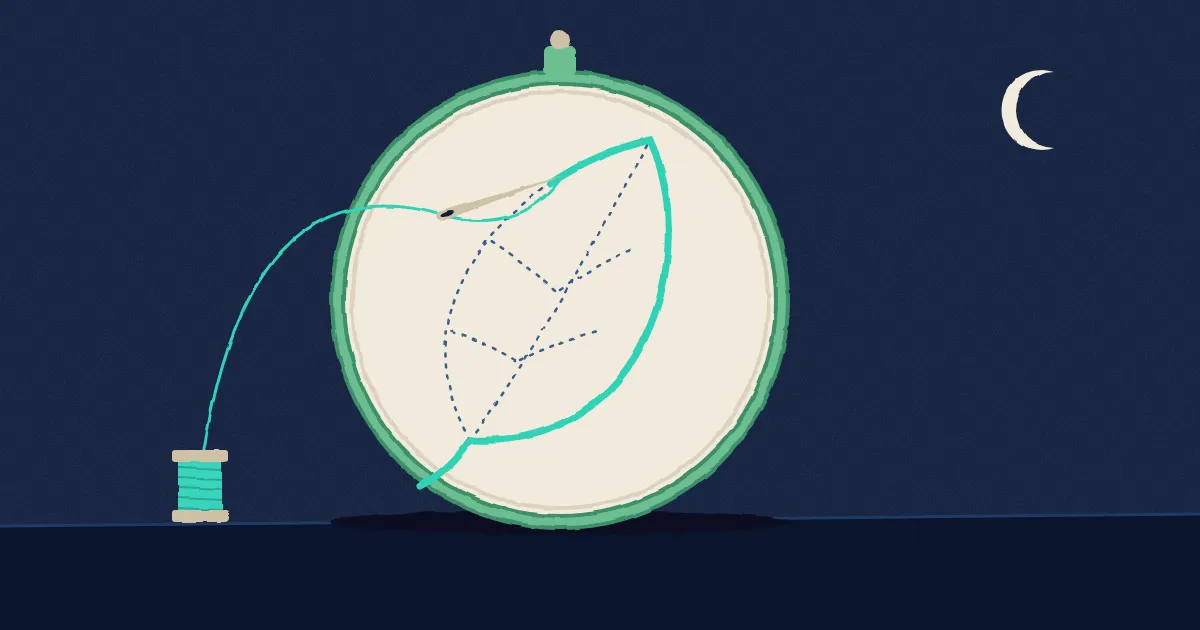
DrawSVG and MorphSVG are two GSAP plugins for SVG. DrawSVG reveals or hides the stroke of a shape by handling stroke-dasharray and stroke-dashoffset. MorphSVG turns a <path> into another shape even when the two don't have the same number of points, adding the missing ones.
A logo that draws itself stroke by stroke and an icon that turns from a star into a heart are this post's two cases, each with its own demo; the series' final tutorial uses both plugins on a logo.
This post is part of the GSAP series: licensing and setup live in the series hub, matchMedia and gsap.context in post 2, and the other SVG post, on MotionPath, is post 10. The new part is smooth, a MorphSVG option that shipped in 3.14.0, released in December 2025, which redraws the shape with more points. Both plugins have been free since 3.13, and with GSAP 3.15.0 three tags are enough:
<script src="https://unpkg.com/gsap@3.15.0/dist/gsap.min.js"></script>
<script src="https://unpkg.com/gsap@3.15.0/dist/DrawSVGPlugin.min.js"></script>
<script src="https://unpkg.com/gsap@3.15.0/dist/MorphSVGPlugin.min.js"></script>
<script>
  gsap.registerPlugin(DrawSVGPlugin, MorphSVGPlugin);
</script>
DrawSVG: the minimum
The example in the DrawSVGPlugin docs draws every element with the draw-me class:
// Assumes SVG elements with the draw-me class and a stroke applied.
gsap.from(".draw-me", { duration: 1, drawSVG: 0 });
It starts from an empty stroke. It works on <path>, <line>, <polyline>, <polygon>, <rect> and <ellipse>, as long as the shape has a stroke (stroke and stroke-width, in CSS or attributes).
The value is the visible segment, not a range
The drawSVG value is the part of the stroke visible at the end of the tween (the start, in a from()). "20% 80%" shows the stroke between the 20% and 80% marks; it does not animate from 20% to 80%. With a single value the start is 0, so "100%", "0 100%" and true are the same. Percentages and lengths both work. Drawing from the center starts at "50% 50%", a zero-length segment:
// Assumes SVG elements with the line class and a stroke applied.
gsap.fromTo(".line", { drawSVG: "50% 50%" }, { drawSVG: "0% 100%", duration: 1.2 });
For several strokes, stagger (post 2) chains them inside a timeline (post 3), and ScrollTrigger's scrub (post 5) draws them on scroll:
// Assumes strokes with the line class and a filled <path class="hexagon">.
const tl = gsap.timeline()
  .fromTo(".line", { drawSVG: 0 }, { drawSVG: "100%", duration: 1.2, stagger: 0.3 })
  .fromTo(".hexagon", { fillOpacity: 0 }, { fillOpacity: 0.25, duration: 0.4 });
What DrawSVG doesn't do
It never touches the fill: it only animates stroke-dashoffset and stroke-dasharray, which is why the hexagon fill is a separate tween. It also prefers a <path> with a single segment, one M command (the one that starts a new piece): according to the docs, browsers struggle to render one stroke across several; a demo in the docs offers a splitPaths() helper to break it up.
Appending "live" re-measures the length on every tick, for the rare case where it changes mid-animation. An SVG that scales through its viewBox doesn't need it: in the DrawSVGPlugin 3.15.0 source, a path's length comes from getTotalLength(), in the path's own units. With vector-effect: non-scaling-stroke, though, it measures on screen on every tick without being asked.
The demo: a logo that draws itself
Three single-segment paths: a hexagon, a check mark and a wave. With full motion, the logo draws once when half of the demo comes into view, in about 2.2 s. That is under the 5 s after which criterion 2.2.2 of WCAG 2.2 asks for a way to pause. With reduced motion the logo is shown complete and nothing moves by itself; the buttons still animate it. gsap.matchMedia() (post 2) handles the split.
MorphSVG: the minimum
This one, based on the example in the MorphSVGPlugin docs, turns a diamond into a lightning bolt:
// Assumes two <path> elements, one with id="diamond" and one with id="lightning".
gsap.to("#diamond", { morphSVG: "#lightning", duration: 2 });
The target can be a selector, an element or a path data string. MorphSVG moves each anchor of the start shape, each point the path passes through, to one on the end shape. If one has fewer, it adds anchors until they match, without changing how it looks. The original path data stays in data-original, so a later tween can go back to it. For options, morphSVG takes an object where only shape is required:
// Assumes a <path id="icon"> and a <path id="star">.
gsap.to("#icon", { morphSVG: { shape: "#star", smooth: "auto" }, duration: 0.8 });
smooth: more points for a more natural morph
smooth, new in 3.14.0, redraws the shape with more anchors; the docs compare it to raising the resolution. It helps when the artwork has awkwardly placed anchors. It takes a number (smooth: 80 redraws the path with 80 evenly spaced anchors), "auto" (picks a count from the surface area) or an object { points, redraw, persist }: redraw: false keeps the original anchors and adds the new ones between them, and persist: false leaves the end shape with its original anchors once the morph finishes, dropping the added ones.
In the demo, coming from the circle, the heart's d attribute, which holds the path, ends with 38 numbers without smooth and 398 with "auto", inside the same bounding box. From the star it is 488: "auto" uses the larger of the counts for the two shapes. The extra points stay because persist defaults to true. The docs warn that too many can hurt performance.
Does it look better? In captures at 50% of the circle-to-star morph, the in-between star comes out lopsided without smooth and balanced with it. That is a judgment by eye, not a measurement; the demo allows the comparison: the Smooth checkbox sets smooth to "auto" and the line below counts the numbers in d. It never starts by itself.
When a morph looks odd
shapeIndexpicks which anchor of the start shape goes with the first anchor of the end shape; by default it works this out on its own. Closed paths only;findShapeIndex()finds it during development.type: "rotational"interpolates rotation and length instead of coordinates, which can look more natural and avoids kinks mid-morph.curveMode: true, also new in 3.14.0, prevents those kinks on curves, though the docs say it can make some morphs look slightly worse, so it is worth testing.- When a path has several pieces,
mapdecides which piece goes with which: by size ("size", the default), position ("position") or complexity ("complexity"); per the docs, the default usually works great.
Accessibility in both demos
Each <svg> has role="img" and an aria-label. In WAI-ARIA 1.2 that role requires an accessible name and makes screen readers skip what is inside. Each demo is a named role="group", and the icon renames itself on each change: "Icon: star".
The shape buttons use aria-pressed, which the ARIA APG Button pattern calls for on a two-state button whose label stays the same. No custom keys: native buttons already handle Enter and Space, and the checkbox handles Space, as in posts 8, 9 and 10.
Common mistakes
- DrawSVG with no
stroke. There is nothing to reveal. - Reading
"20% 80%"as "from 20 to 80". It is the visible segment. - A
<path>with severalMcommands. The stroke may render badly. non-scaling-strokewith non-proportional scaling. DrawSVG warns that it cannot measure the<path>.- A MorphSVG target that doesn't exist. MorphSVG warns "WARNING: invalid morph to: #lightning" and the shape stays as it was.
FAQ
Are DrawSVG and MorphSVG paid?
No. Since 3.13 GSAP is free, including formerly members-only plugins like MorphSVG.
Can a <circle> be morphed?
Yes, with one step first: as it is, MorphSVG warns "Cannot morph a <CIRCLE> element" and leaves it alone. MorphSVGPlugin.convertToPath("#circle") swaps it in the DOM for a <path> that keeps attributes such as its id.
Conclusion
This post's approach: single-segment paths with a stroke set, and the fill in its own tween; in MorphSVG, the defaults first, and smooth: "auto" only if the in-between shape comes out lopsided.
The rest of the series lives in the hub and posts 2, 3, 4, 5, 6, 7, 8, 9 and 10. Next come post 12 (Physics2D and PhysicsProps) and the final tutorial, which uses both plugins on a logo.
References
- GSAP — DrawSVGPlugin
- GSAP — MorphSVGPlugin
- GSAP — GSAP 3.13
- npm — gsap, release dates
- W3C — WAI-ARIA 1.2
- W3C — ARIA APG, Button pattern
- W3C — WCAG 2.2
Tags
Share this post
Subscribe
Get the latest posts delivered right to your inbox.

Leave a comment